How to Increase Internet Speed on Android, iPhone, and PC
Published: 19 May 2026
I have tested internet problems on Android, iPhone, and PC, and one thing stays the same. Most slow internet issues do not come from the device; they come from settings, weak signals, or background usage. In 2026, apps and browsers use more data than before, so even a good connection can feel slow.
In this guide on how to increase internet speed on Android, iPhone, and PC, I will show you real fixes that work on all devices. You will learn what slows your internet, how to check it, and how to fix it step by step so that the internet feels fast again.
Before you scroll further, let’s understand what is really slowing your internet down.
Why the Internet Speed Gets Slow
Before applying any fixes, this section helps show what actually slows internet speed in the first place. Most slowdowns do not come from a single issue but from a mix of small problems working together. Once the cause becomes clear, fixing the connection feels much more direct.
Common reasons behind slow internet:
- Weak Wi-Fi signal: Distance from the router or thick walls can weaken the signal and reduce speed.
- Too many connected devices: Multiple phones, TVs, and laptops sharing one network lower the available internet speed.
- Background app usage: Apps running silently keep consuming data and slow down browsing or streaming.
- Old router or incorrect settings: Outdated hardware or incorrect setup can limit the maximum speed of the connection.
- Network congestion: The internet slows down during busy hours when many users in the area go online at the same time.
How to Check Internet Speed
A quick speed check helps show what is actually happening with the connection. Many times, the problem does not match what the device shows. A speed test gives a clear picture of download speed, upload speed, and delay. This makes it easier to decide what needs to be fixed first.
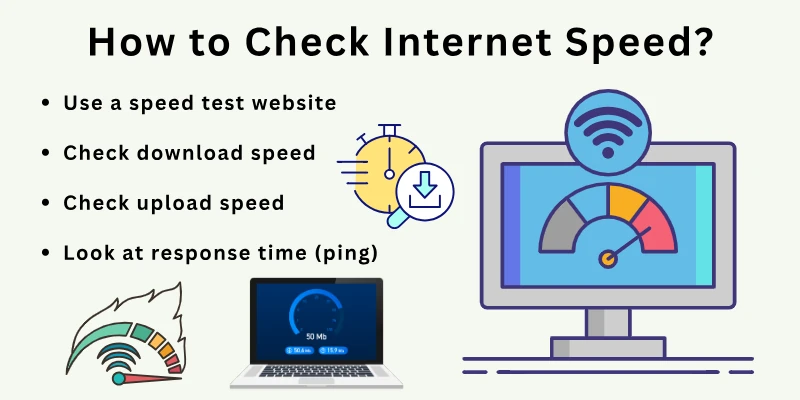
- Use a speed test website: Open sites like Speedtest or Fast.com and start the test to see the internet speed. It gives a quick result.
- Check download speed: This shows how fast videos, files, and pages load on the device. It affects video and browsing speed.
- Check upload speed: This reveals how fast photos, videos, or files go from the device to the internet. It becomes noticeable during uploads.
- Look at response time (ping): This tells how quickly the internet responds during browsing or gaming.
Quick Fixes to Boost Internet Speed on All Devices
Sometimes, a few simple steps can improve internet speed right away. These fixes work on all devices and do not need any technical steps. In many cases, small changes bring a clear difference in connection stability.
Try these first before moving to advanced methods.
- Restart router and device: Turn off the router and device for a few seconds, then start them again. This clears small connection issues.
- Turn Airplane Mode on and off: Switch Airplane Mode on for a few seconds, then turn it off to refresh the network connection.
- Move closer to the router: Sit closer to the Wi-Fi source to get a stronger and more stable signal.
- Disconnect unused devices: Remove extra phones, TVs, or laptops from Wi-Fi to free up speed.
- Stop downloads and updates: Pause large downloads or app updates that use the internet in the background.
How to Increase Internet Speed on Android
Android phones slow down internet speed for many reasons, like signal drops, background apps, or wrong settings. Small changes inside the device can enhance internet speed without needing any extra tools.
1. Restart the Android device
A quick restart can clear small glitches that affect network performance. It also gives the system a fresh start for better connectivity.
- Close all running apps before restarting
- Turn the phone off for a few seconds
- Start again to refresh the network connection
2. Turn Airplane Mode on and off
This step only refreshes the mobile signal. It often helps when the connection feels stuck or unstable.
- Switch Airplane Mode on for 10–15 seconds
- Turn it off to refresh the signal connection
- Wait a few seconds before using the internet again
3. Switch to a faster network type (4G/5G)
Changing the network type can improve speed in areas with a weak signal. It helps the phone connect to a stronger network mode.
- Open mobile network settings
- Select preferred network type
- Choose 4G or 5G for better speed
4. Forget and reconnect to the Wi-Fi network
Reconnecting Wi-Fi can fix hidden connection errors. It helps the phone build a fresh link with the router.
- Open Wi-Fi settings
- Tap the saved network and select “forget”
- Reconnect by entering the password again
5. Clear app cache
Stored data in apps can slow down internet use over time. Clearing it helps apps run with fewer delays.
- Go to app settings
- Select heavy apps like a browser or social media
- Clear stored cache data
6. Disable background data usage
Some apps keep using the internet even when not in use. Stopping them helps save speed for active tasks.
- Open data usage settings
- Check apps using the internet in the background
- Turn off background data for unused apps
7. Turn off battery saver mode
Battery saver can limit network performance to save power. Turning it off allows full internet speed.
- Open battery settings
- Switch off battery saver
- Allow full network performance
8. Update Android system
Updates often fix bugs that affect internet performance. Keeping the system updated helps improve stability.
- Go to the system update section
- Check for the latest version
- Install available updates
9. Reset network settings
A network reset removes old or broken connection settings. It gives the device a clean setup for internet use.
- Open reset options in settings
- Choose network reset
- Reconnect Wi-Fi and mobile data again
10. Use Google DNS settings
Changing DNS can make the internet response faster in some cases. It helps improve loading time for websites.
- Open Wi-Fi advanced settings
- Change DNS manually
- Enter Google DNS values
11. Remove unused apps
Some apps quietly use the internet even when not open. Closing them helps free up connection speed.
- Check the running apps list
- Close apps not in use
- Stop apps that use the internet silently
12. Check for software updates
Outdated apps or system versions can slow performance. Updating helps the device run without issues.
- Open the Play Store or system updates
- Update outdated apps
- Keep system apps fresh
13. Move closer to the Wi-Fi router
Distance from the router can weaken signal strength. Staying closer helps improve speed and stability.
- Reduce the distance from the router
- Avoid walls and obstacles
- Stay in an open signal area
How to Increase Internet Speed on iPhone
iPhone settings can affect internet speed more than expected. A few quick changes inside the device can improve browsing, streaming, and app usage. The steps below focus on simple actions that help make the connection feel faster in daily use.
1. Restart the iPhone
A restart clears temporary system issues that can affect internet performance.
- Turn off the iPhone
- Wait a few seconds
- Turn it back on
2. Switch between Wi-Fi and mobile data
Changing networks helps when one connection becomes weak or unstable.
- Turn off the current connection
- Wait briefly
- Switch to the other option
3. Choose a stronger Wi-Fi band
Wi-Fi performance varies by band and distance from the router.
- Open Wi-Fi settings
- Select an available band
- Connect to a stronger signal
4. Reconnect to the Wi-Fi network
A fresh connection removes hidden errors stored in the network.
- Open Wi-Fi list
- Forget the current network
- Rejoin with the password
5. Clear Safari stored data
Old browsing data can slow page load times over time.
- Open Safari settings
- Clear history and data
- Restart browser
6. Turn off background app refresh
Apps running in the background can reduce available internet speed.
- Open background settings
- Disable unused apps
- Keep only the important ones active
7. Disable data-saving mode
Data saving limits can reduce full network performance.
- Open mobile settings
- Turn off data saving
- Test speed again
8. Update iOS system
System updates fix network bugs and improve stability.
- Open the software update section
- Install the latest version
- Restart device
9. Reset network settings
Wrong network settings can cause slow or unstable internet.
- Open reset options
- Select network reset
- Reconnect Wi-Fi and data
10. Improve Wi-Fi signal strength
A weak signal directly reduces internet speed and stability.
- Stay closer to the router
- Avoid walls and obstacles
- Use the open space for better signals
How to Increase Internet Speed on PC
Windows PCs slow down internet use because of system tasks, network settings, or hardware limits. A few direct changes inside the system can improve loading speed, downloads, and overall connection feel. The steps below focus on different areas, so each one adds an improvement.
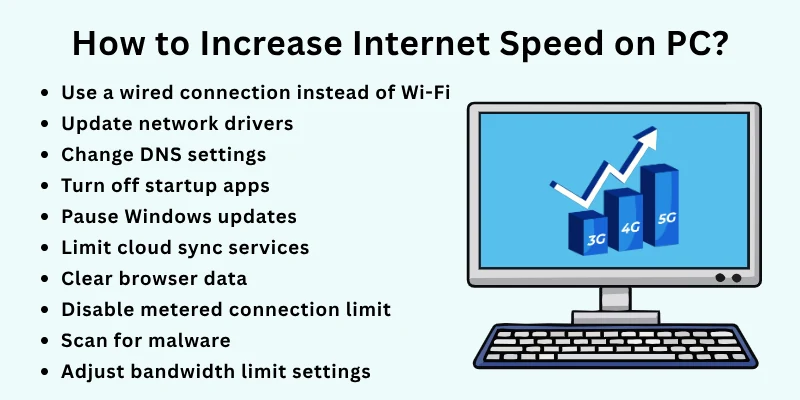
1. Use a wired connection instead of Wi-Fi
A cable connection gives a more stable link than wireless signals.
- Connect the LAN cable from the router to the PC
- Turn off Wi-Fi to avoid switching
- Test speed after connection
2. Update network drivers
Old drivers can limit how the system handles internet data.
- Open Device Manager
- Find network adapters
- Update the driver to the latest version
3. Change DNS settings
DNS affects how quickly websites open.
- Open network settings
- Go to adapter options
- Enter a custom DNS, like Google DNS
4. Turn off startup apps
Some apps start with Windows and use the internet in the background.
- Open Task Manager
- Go to the startup tab
- Disable unnecessary apps
5. Pause Windows updates
System updates can use the internet without notice.
- Open update settings
- Pause updates temporarily
- Resume later when needed
6. Limit cloud sync services
Cloud apps keep syncing files and use the internet constantly.
- Open cloud app settings
- Pause syncing
- Resume only when needed
7. Clear browser data
Stored files in the browser can slow down page loading.
- Open browser settings
- Clear cache and cookies
- Restart browser
8. Disable metered connection limit
Metered settings can restrict full internet speed.
- Open network settings
- Turn off the metered connection
- Recheck speed
9. Scan for malware or unwanted programs
Malicious apps can use the internet without permission.
- Run system security scan
- Remove suspicious programs
- Restart PC after cleanup
10. Adjust bandwidth limit settings
Windows may reserve some internet for system use.
- Open the group policy or settings
- Find the bandwidth limit option
- Set it to a lower value
Comparison of How to Improve Internet Speed on Android, iPhone, and PC
Different devices need different steps to enhance internet speed. Some fixes work on all devices, while others depend on the system and settings.
This comparison makes it easy to see what works best for Android, iPhone, and PC in one place.
| Fix/Method | Android | iPhone | Windows PC/Laptop |
| Restart the device | Restart the phone to refresh the network | Restart the iPhone to clear the load | Restart the PC to reset the connection |
| Network switch | Change to 4G or 5G | Switch between Wi-Fi and data | Use Ethernet instead of Wi-Fi |
| Wi-Fi reconnect | Forget and reconnect to Wi-Fi | Rejoin Wi-Fi network | Disable and enable the Wi-Fi adapter |
| Background activity control | Turn off background data | Disable app refresh | Stop startup apps |
| Data-saving settings | Turn off battery saver | Disable Low Data Mode | Turn off the metered connection |
| Software updates | Update the Android system | Update iOS | Update Windows and drivers |
| Cache or data cleanup | Clear app cache | Clear Safari data | Clear browser cache |
| Network reset | Reset network settings | Reset network settings | Reset network configuration |
| DNS settings | Use Google DNS | Change DNS settings | Set custom DNS |
Advanced Fixes for Better Internet Speed
If basic steps do not increase speed, a few bigger changes can make a clear difference. These methods go beyond basic settings and focus on how the network works. They may take a little more effort, but the results will be better.
Try these steps when simple methods no longer help.
- Change Wi-Fi channel: Nearby networks can cause a signal clash on the same channel. Switch to a less crowded channel in router settings.
- Update router firmware: Old router software can slow down connection performance. Install the latest firmware from the router settings.
- Use a dual-band router: Single-band routers struggle with modern internet use. Upgrade to a router that offers both 2.4GHz and 5GHz bands.
- Limit connected devices: Too many active devices reduce the speed for each one. Remove or pause devices that are not in use.
- Check internet plan speed: The current plan may not match daily usage needs. Review plan details and upgrade if needed.
- Use a Wi-Fi extender: A weak signal in large spaces can slow down speed. Place an extender to cover low-signal areas.
- Reduce interference from devices: Electronics like microwaves and Bluetooth devices can affect Wi-Fi. Keep the router away from such items.
- Enable QoS settings on the router: QoS lets the router give priority to important tasks. Set a higher priority for browsing or streaming devices.
- Place the router in an open space: Closed or hidden placement reduces signal strength. Keep the router in a central and open area.
Tips for Network Optimization
A stable internet connection depends on how well the network is managed. Small adjustments can boost speed and reduce interruptions. Use these tips when the connection is unstable.
- Keep the router in the center: Place the router in the middle of your home so the signal spreads evenly in all directions.
- Avoid physical barriers: Walls, doors, and metal objects can block and slow down signals.
- Reduce nearby wireless devices: Too many active wireless gadgets can interfere with Wi-Fi signals.
- Turn off unused network features: Disable features like guest Wi-Fi if not needed to keep the main connection stable.
- Schedule heavy internet use: Use downloads or updates at times when fewer devices are active.
- Keep firmware updated: Router updates can fix small issues that affect connection quality.
- Use strong passwords: A secure network prevents unknown users from slowing down the speed.
- Monitor connected users: Check which devices are using Wi-Fi and remove unknown connections.
- Restart router weekly: A simple restart clears small glitches and refreshes performance.
- Place the router away from heat: Heat can affect router performance and reduce signal strength over time.
ISP & Plan-Related Issues
In some cases, slow internet does not come from the device or settings. It depends on the internet service being used. The internet speed decides how fast or slow the connection feels.
The points below explain the source of the problem.
- Plan speed limit: Every internet plan comes with a fixed speed, and speed drops when that limit is reached or exceeded.
- Peak time slowdown: The connection becomes slow during high-traffic hours when the network is crowded.
- Data usage limit: Some plans reduce speed after a certain amount of data is used in a month.
- Service area quality: Network strength changes based on location, and some areas get weaker coverage than others.
- Line or connection issue: Faults in the external internet line can reduce speed and cause unstable performance.
Conclusion
We broke down how to increase internet speed on Android, iPhone, and PC; how to check the speed; and what quick fixes can improve performance across all devices, plus the deeper settings changes, network optimization tips, and ISP- or plan-related issues.
Internet speed problems usually come from small combined factors like signal strength, device settings, or service limits rather than a single cause. At the same time, not every method works the same for every situation, so results can vary depending on the device and network conditions. That is why it helps to try different steps one by one instead of relying on a single fix.
To finish, the FAQs section is also added below.
FAQs
This part answers common questions to help fix internet speed issues faster.
DNS helps translate website names into IP addresses so webpages can load properly. A slow DNS server can delay website loading times. Changing DNS may improve response speed in some cases. It does not increase your internet plan speed, but it can improve loading efficiency.
Switching connection type can improve speed in areas with weak Wi-Fi. Mobile data may perform better when the Wi-Fi network is crowded. In some cases, Wi-Fi can still be faster depending on coverage. Testing both options helps find the better connection.
Apps may slow down due to internal bugs or cached data. Server issues can also delay loading. Background updates may consume resources while the app is running. Restarting the app often refreshes performance.
VPNs route traffic through extra servers before reaching websites. This extra step can reduce speed in many cases. Server distance also impacts performance. Turning off the VPN may improve speed instantly.
Mobile data depends on tower distance and signal strength. Weather and location can also affect performance. Wi-Fi is usually more stable in indoor environments. Network load on mobile towers also impacts speed. Speed may also be reduced when the signal keeps switching between towers.
Yes, outdated software can create compatibility issues with networks. It may also contain bugs that affect performance. Updates often improve stability and speed handling. Keeping systems updated helps maintain better connectivity.
If all devices show slow speed, the ISP may be the issue. Frequent drops at specific times also indicate provider-side problems. Comparing your actual speed with your internet plan helps confirm it. Contacting the provider may be necessary in such cases.
Web pages depend on server response, not just internet speed. Heavy websites with large images load more slowly. Ads and scripts can delay loading. Trying a different website helps compare speed.
Weather can affect certain types of connections, like mobile data or satellite internet. Heavy rain or storms may weaken signals. Wired connections usually stay more stable. The weather impact depends on the connection type.
Overheating can slow down device performance overall. This includes how apps and network functions run. High temperature may reduce processing speed. Keeping the device cool helps maintain stable functioning.






- Be Respectful
- Stay Relevant
- Stay Positive
- True Feedback
- Encourage Discussion
- Avoid Spamming
- No Fake News
- Don't Copy-Paste
- No Personal Attacks
- Be Respectful
- Stay Relevant
- Stay Positive
- True Feedback
- Encourage Discussion
- Avoid Spamming
- No Fake News
- Don't Copy-Paste
- No Personal Attacks
