What Is Ethernet? Learn the Basics in Minutes
Published: 24 Oct 2026
Does plugging your laptop into a router mean you are accessing the internet directly? Not always. A wired network can connect devices and let them share information even when the internet stops working. This is where Ethernet comes in.
In this article, I’ll clear up the confusion and explain what Ethernet is, which types and cables it uses, its features, benefits, limitations, applications, and how it compares with Wi-Fi.
Let’s explore how this technology works.
What Is Ethernet?
Ethernet is a wired networking technology. It uses Ethernet cables to connect devices and help them communicate within a network. It provides a stable and reliable connection for transferring data between devices.
For example, when you connect your computer to a router using an Ethernet cable, you create a wired network connection. If the router has internet access, your computer can use that connection to access the internet.
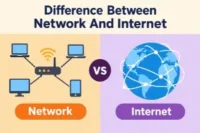
Ethernet is not the same as the internet. Ethernet connects devices within a network, while the internet connects networks worldwide. You can use Ethernet to communicate between devices on a local network even when the internet is unavailable.
How Does Ethernet Work?
Ethernet makes communication between network devices possible through a set of rules. The process may sound technical, but a few simple steps explain how it works.
- Connect Devices: An Ethernet cable connects devices, such as a computer and a router or switch, through their Ethernet ports.
- Prepare the Data: A device divides data into smaller units for transmission across the network.
- Address the Data: Ethernet uses MAC addresses to help identify the source and destination devices on a local network.
- Send Data Across the Network: An Ethernet switch checks the destination address and forwards the data toward the correct device.
- Receive the Information: The destination device receives and processes the data. For example, a computer can display a webpage after receiving the information needed to load it.
What Are Ethernet Frames?
Ethernet frames are small units of data that Ethernet uses to transfer information across a network. Each frame contains specific details that help network devices handle and deliver data correctly.
An Ethernet frame contains several parts:
- Destination MAC Address: Identifies the device that should receive the frame.
- Source MAC Address: Identifies the device that sent the frame.
- Type or Length Field: Indicates the type of data the frame carries or the size of the data.
- Data Payload: Contains the actual information being transferred, such as part of a webpage or a file.
- Frame Check Sequence (FCS): Helps the receiving device detect errors that may occur during transmission.
Note: If a frame contains an error, the receiving device can detect it and discard the damaged frame.
How Has Ethernet Evolved?
Ethernet has changed significantly since its early days. Advances in network technology have made it faster and more reliable, from home networks to large data centers.
Here are the stages in Ethernet’s development.
1973: The Beginning of Ethernet
Robert Metcalfe and his colleagues developed Ethernet at Xerox PARC in California. The original design connected computers and allowed them to share resources, such as printers.
1980s: Ethernet Becomes a Standard
In 1980, DEC, Intel, and Xerox published a common Ethernet specification. In 1983, the IEEE published Ethernet as the 802.3 standard, allowing manufacturers to build compatible network devices.
1990s: Easier Cable Connections
Ethernet expanded beyond its early coaxial cables. Twisted-pair cables and hubs made it easier to connect computers in homes and offices. Fast Ethernet also increased network speeds from 10 Mbps to 100 Mbps.
2000s: Faster Network Connections
Gigabit Ethernet brought speeds of up to 1 Gbps, making it easier to transfer large files, share network resources, and handle growing network traffic.
2010s and Beyond: Higher Speeds
Ethernet continued to advance with speeds such as 10 Gbps, 40 Gbps, 100 Gbps, and beyond. These advances support high-speed data transfer in data centers, businesses, and modern communication systems.
Types of Ethernet
Ethernet comes in several types, each with its own speed limit and common uses. These differences help determine which type suits a particular network.
Here are the types, from the earliest version to faster modern connections.
- Standard Ethernet: Supports speeds of up to 10 megabits per second (Mbps). It served early computer networks but cannot meet the needs of most modern networks.
- Fast Ethernet: Offers speeds of up to 100 Mbps. It improved data transfer for small office networks and basic computer connections.
- Gigabit Ethernet: Reaches speeds of up to 1 gigabit per second (Gbps). It works well for home networks, office computers, online gaming, and sharing large files.
- 10 Gigabit Ethernet: Supports speeds of up to 10 Gbps. Businesses, servers, and data centers use it for high-speed network connections.
- Higher-Speed Ethernet: Supports connections of 40 Gbps, 100 Gbps, 400 Gbps, and beyond. Large data centers and service providers use these connections to move huge volumes of data between systems.
Features of Ethernet
Ethernet uses networking rules and technologies. Its design supports communication across different types of wired networks. Explore the following main features.
- Stable Performance: Maintains a consistent connection for steady network access.
- Physical Connectivity: Connects devices through copper or fiber-optic cables, depending on the network setup.
- Built-In Error Checking: Uses a Frame Check Sequence (FCS) to help devices detect corrupted data frames.
- Full-Duplex Communication: Modern Ethernet connections can send and receive information at the same time, helping devices communicate more efficiently.
- Power over Ethernet Support: Compatible Ethernet equipment can carry both data and electrical power through one cable, reducing the need for separate power connections.
What Are the Different Types of Ethernet Cables?
Ethernet cables come in different categories, each supporting specific speeds and bandwidth. Cable type can affect connection performance, especially over longer distances.
The major Ethernet cable categories and their differences are the following:
- Cat5: Supports speeds of up to 100 Mbps and frequencies up to 100 MHz. These cables are an older option and have largely been replaced by newer categories.
- Cat5e: Offers speeds of up to 1 Gbps at 100 MHz. These cables reduce signal interference.
- Cat6: Provides speeds of up to 10 Gbps over shorter distances, typically up to 55 meters under suitable conditions. These cables operate at frequencies up to 250 MHz.
- Cat6a: Supports 10 Gbps over distances up to 100 meters and operates at frequencies up to 500 MHz.
- Cat7: Allows speeds of up to 10 Gbps over distances up to 100 meters and uses shielding to reduce interference.
- Cat8: Delivers speeds of up to 25 or 40 Gbps over distances up to 30 meters, with frequencies up to 2,000 MHz.
| Advantages of Ethernet |
|---|
|
Ethernet is widely used because of its many benefits, making it a practical option for modern networking. Notable advantages are:
|
| Disadvantages of Ethernet |
|---|
|
Ethernet has limitations despite its usefulness in wired networks. These drawbacks may affect its suitability for certain users and network setups. The main disadvantages include:
|
Uses of Ethernet
Ethernet plays an important role in modern networking by providing a standard way for wired connections to operate. It is useful in the following areas:
- Home Networking: Connects modems, smart TVs, and gaming consoles within a home network.
- Business Communication: Links office computers and other network equipment to help employees work efficiently.
- Server Rooms and Data Centers: Connects servers and storage systems that process and manage large volumes of data.
- Industrial Control Systems: Enables communication between machines, controllers, and sensors in factories.
- Security Monitoring: Connects IP cameras and recording systems for video monitoring.
- Internet-Based Phone Systems: Links IP phones to business networks for voice calls.
Ethernet Switch vs. Ethernet Hub
Switches and hubs both connect devices to a network, but they handle data differently. The following table compares them.
| Feature | Ethernet Switch | Ethernet Hub |
| How It Sends Data | Sends data to the port linked to the intended device. | Sends incoming data to every connected port. |
| Network Traffic | Keeps unnecessary data traffic lower by directing data to its destination. | Creates extra traffic because every connected device receives the data. |
| DeviceAddressing | Uses MAC addresses to identify devices on the network. | Does not check MAC addresses before sending data. |
| Power Use | May use more processing power to manage network traffic. | Uses simpler hardware to repeat incoming signals. |
| Network Speed | Handles busy network traffic more efficiently. | Can slow down when several devices send data at once. |
| Use | Works with modern network equipment. | Mostly appears in older networks because switches offer better performance. |
Ethernet vs. Wi-Fi
Ethernet and Wi-Fi provide different ways to access a network. The table below explains how each one works differently.
| Feature | Ethernet | Wi-Fi |
| Connection Method | Uses a cable plugged into a device’s Ethernet port. | Uses radio signals between devices and a wireless access point. |
| Mobility | Requires devices to stay connected to a cable while using the network. | Lets users move around within the network’s coverage area. |
| Interference | Avoids interference from nearby Wi-Fi networks. | Can experience interference from other wireless signals. |
| Privacy and Security | Limits access through physical network ports. | Uses encryption and authentication to protect wireless access. |
| Installation | May require cables to run between devices and network equipment. | Needs a wireless router or access point. |
| Device Compatibility | Requires an Ethernet port or a suitable adapter. | Requires a compatible wireless network adapter. |
How to Connect an Ethernet Cable
Setting up an Ethernet connection is simple when you know where to plug in each end. Follow these easy steps to set up the connection.
- Find the Port: Locate the Ethernet port on your device.
- Pick the Right Cable: Select an Ethernet cable that fits the available ports.
- Connect the Cable: Plug one end of the cable into your device and the other into a router or switch.
- Check the Connection: Look for indicator lights near the Ethernet port to see whether the link is active.
- Test the Network: Open a website or use a network service to check whether the connection works.
Tip: If the connection doesn’t work, check the cable and try a different port.
What Is Power over Ethernet (PoE)?
Power over Ethernet (PoE) carries electrical power and network data through a single Ethernet cable. It allows devices to receive power without a separate power connection.
PoE is commonly used with devices such as:
- IP cameras
- Wireless access points
- VoIP phones
It helps simplify installation and reduces the need for extra wiring.
How Does PoE Work?
PoE uses compatible network equipment to send both data and electrical power through an Ethernet cable.
- PoE Switch: Sends power and network data through one cable.
- PoE Injector: Adds electrical power to an Ethernet connection when a regular switch does not provide PoE.
- Powered Device: Receives power and data through the cable, such as an IP camera or wireless access point.
Note: Both the power source and the connected device must follow the same PoE standard for the setup to work correctly.
Common Ethernet Problems and How to Fix Them
Ethernet connections can sometimes develop issues that affect network access or performance. Identifying the problem helps you find the right solution.
Problem No. 1: Ethernet cable not connecting.
Solution: Check that both ends of the cable fit firmly into their ports. Try another cable if the connection fails.
Problem No. 2: Slow Ethernet connection.
Solution: Check your internet plan, router performance, and network activity. Avoid downloading large files or apps while testing your connection.
Problem No. 3: Ethernet disconnects frequently.
Solution: Inspect the cable for damage and make sure the connectors stay firmly in place. Replace the cable if it is worn or damaged.
Problem No. 4: Ethernet port not working.
Solution: Try another port on your router or switch. If the problem continues, check your device’s network adapter and driver.
Problem No. 5: Ethernet adapter disabled.
Solution: Open your device’s network settings and make sure the Ethernet adapter is enabled.
Tip: Try each solution separately to identify the problem.
Final Thoughts
Dear readers, this guide has explained what Ethernet is, how Ethernet frames carry data, how the technology has evolved, and how switches differ from hubs. You’ve also explored Power over Ethernet (PoE).
Ethernet provides a reliable wired connection, but it requires cables and limits movement. It uses different cable types and network standards to link devices within a network.
Important Note: Consider your devices, available ports, and how much flexibility you need before choosing between Ethernet and Wi-Fi.
For more clarity, continue to the FAQs.
Frequently Asked Questions
I’ve listed common questions and their answers about Ethernet technology.
Ethernet standards define how wired network devices connect and communicate. IEEE 802.3 is the main standard for wired Ethernet connections. Different standards define connection speeds.
Ethernet can reduce exposure to nearby wireless attacks because it uses physical connections. However, it does not automatically protect a network from online threats. To protect your network, use:
- Router security settings
- Strong passwords
- Updated software
No, not every computer includes a built-in Ethernet port. Many desktop computers have one, while some slim laptops leave it out. Check your computer’s specifications to see which network connections it supports.
An Ethernet transceiver sends and receives signals across a network connection. Depending on its type, it can work with copper cables or fiber-optic connections. Network equipment uses transceivers to support different connections.
An Ethernet adapter lets a device connect to a wired network through a suitable interface. Some adapters are built in, while others connect through USB or another port.
A MAC address is a hardware address assigned to a network interface. It helps identify that interface on a local network. Network switches use MAC addresses to direct Ethernet traffic to the right place.
An Ethernet backbone is a main network connection that links different parts of a larger network. It carries traffic between areas such as office floors, departments, or network switches. A backbone helps devices in separate sections communicate.
Full-duplex Ethernet allows devices to send and receive data at the same time. This helps data move in both directions without waiting for one transmission to finish. Most modern Ethernet connections use this mode.
An Ethernet network interface card (NIC) is hardware that allows a device to connect to a wired Ethernet network. It may be built into the computer or installed as an expansion card. The NIC handles the device’s Ethernet communication.
An Ethernet loop happens when network connections create a path that allows data to circulate repeatedly. This can cause excess network traffic and interrupt normal communication. Network equipment can use loop-prevention features to avoid this issue.





- Be Respectful
- Stay Relevant
- Stay Positive
- True Feedback
- Encourage Discussion
- Avoid Spamming
- No Fake News
- Don't Copy-Paste
- No Personal Attacks
- Be Respectful
- Stay Relevant
- Stay Positive
- True Feedback
- Encourage Discussion
- Avoid Spamming
- No Fake News
- Don't Copy-Paste
- No Personal Attacks
